How To Join Vector Lines In Illustrator
Go to your Object menu. Click the Edit Toolbar icon three dots at the bottom of the Basic toolbar.

Vector How To Create 3d Effect Relief In Lines Adobe Illustrator Graphic Design Stack E In 2021 Adobe Illustrator Graphic Design Adobe Illustrator Illustration
With Illustrator vector-based graphics are created based on mathematical equations and the program is ideal for logos banners and anything else that needs to be printed in different sizes.

How to join vector lines in illustrator. Take the Orient Tool and click-and-drag to specify two Rotation points on the selected object. Steps Download Article 1. To do this choose Filters Blur Gaussian Blur.
How to Join Line Ends to Lines on Illustrator in Adobe Pen Tool. To add the Join tool you can drag it anywhere onto the toolbar or drag it onto a tool group to nest it. Illustrator dotted lines are an effective way to clarify infographics and embellish your vector illustrations.
This button looks like a black arrow icon near the upper-left corner. First click the tools panels selection tool. Select the Selection Tool on the left-toolbar.
If you need to create smooth lines in Illustrator there are simple ways to do so. Click on the small triangle icon next to Image Trace to open the list of presets. If one of the other tools with which its.
Youll notice that your image is basically just a square that we cant do much with. Find your Illustrator file on your computer and double-click on. Press the or backslash key to activate the Line Segment tool.
To make compound shapes use the buttons in those rows while pressing the Alt or Option key. CMDCTRLA select all CMDCTRLG group objects. This setting depends on the resolution of your image.
You can also join the end points of two separate paths. If you want all of the lines treated as one object you can use compound path live paint group or layer group. Select the object you want to make vector.
Select the Join tool. Draw a tangent line in Illustrator. It looks like two points connected by a dotted quarter circle.
Then click object path and join. Youll want to drag the selection section across both paths you want to connect but do not select the line that was just drawn. Learn to love Illustrator with our FREE 7 day trial.
Your first option to to select your line tool draw a line and then from the top tool bar select the brush definition menu. You use the Pathfinder panel Window Pathfinder to combine objects into new shapes. Scroll down to Image Trace and select Make and Expand.
Navigate the Pathfinder panel. Youll want to open the Image Trace panel located near the top of the screen. Click and drag to draw a straight.
Marquee around all the. In this quick tutorial well use an easy method for drawing perfect tangent lines every time. In the resulting dialog box set a pixel Radius that spreads the lines by two or three pixels.
The following steps will help you quickly discover the user-friendly. These points will become vertical after alignment. In geometry a tangent line or simply tangent to a plane curve at a given point is the straight line that just touches the curve.
Select the image and from the top menu select Object Image Trace Make. To connect two intersecting or non-intersecting line segments to form a combined path choose the Pen tool and click on the end point of one segment and then again on the end point of the other segment. If you want to connect to two endpoints of lines select the endpoints with direct selection arrow white arrow and click connect points icon in Control context tool bar.
Next click object then path then join. Tangent lines are easy to draw in Adobe Illustrator. The All Tools drawer appears which holds all the tools available in Illustrator.
Now on layer 4 you have a new group open the group and you still have the same objects with the same hierarchy only they exist grouped together within the layer. Press the or backslash key to activate the Line Segment tool. The simplest way is to draw a line open the appearance panel f6 or shiftf6 on mac.
Choose your preferred image trace preset. Use the top row of buttons in the panel to make paths or compound paths. Open the image in Illustrator.
If you select the path you can use the Join command to create a line segment between the end points closing the path. Youll first add the Join tool to your Basic toolbar. Older versions of Illustrator will have a Live Trace option instead of the Image Trace but the editing options are very similar.
Use keyboard shortcut Command-JCtrl-J to join them OR right-click with your mouse and select Join OR go. This check box changes paths to straight lines. Show Original and Preview.
Instead click both the Show Original and Preview check boxes to display the original anchors in red and the anchors that result from simplifying in blue. Next move the blur layer below the original layer and then flatten the image. Open the file you want to edit in Adobe Illustrator.
Youll also notice the edges are a little fuzzy or pixelated. This action enables all the selected objects based around the opposite annotation end point to be rotated. Hover over an orient annotation end point and then click and drag.
Select your image with the Selection tool and adjust its position. Dont be too concerned about the meanings of all the settings in the dialog box. We can fix that.
Wait for Illustrator to vectorize the image. This will now join the left sides anchor points with a path. Open your raster file in Illustrator.
When more than one open path is selected you can join them together to create a closed path.

Vector Silhouette Only From Lines Illustrator Tutorials Graphic Design Tutorial
How To Make Fill Text With Lines Adobe Illustrator Tutorial In 2021 Illustrator Tutorials Adobe Illustrator Tutorials How To Make Brochure

How To Create A Clean Vector Outline With Adobe Illustrator In Five Minutes Vectorboom Illustrator Tutorials Graphic Design Tools Graphic Design Tutorials

Contact Support Vector Line Icons 760524 Illustrations Design Bundles In 2021 Line Icon Supportive Icon

How To Create A Monkey Face With Vector Line Work Monkey Face Illustrator Tutorials Create

Geometric Line Art Set V1 0 In 2021 Line Art Graphic Design Projects Geometric Lines

How To Create Geometric Stripy Line Art In Illustrator Illustrator Tutorials Graphic Motif Graphic Design Tutorials

Illustrator Tip 1 Dotted Lines In Illustrator Vector Diary Illustrator Basics Illustrator Tutorials Dotted Line

Vector Lines Distortion Effect In Adobe Illustrator Typography Tutorial Illustrator Graphic Design Tutorials Photoshop Graphic Design Lessons

2 How To Round An Anchor Point Line In Adobe Illustrator Youtube Adobe Illustrator Adobe Illustrator Tutorials Illustrator Tutorials

How To Use Brushes In Adobe Illustrator To Ink A Sketch Tuts Design Illustration Tutorial Illustrator Tutorials Adobe Illustrator Illustration Design

How To Vectorize A Hand Drawing Svg Illustrator Tutorial Illustrator Tutorials How To Draw Hands How To Make Drawing

Vector Line Art For An Instruction Manual For An Outside Projector Done In Adobe Illustrator Line Art Technical Illustration Line Art Images

How To Use Brushes In Adobe Illustrator To Ink A Sketch Tuts Design Illustration Tutori Illustrator Tutorials Graphic Design Tutorials Illustration Design
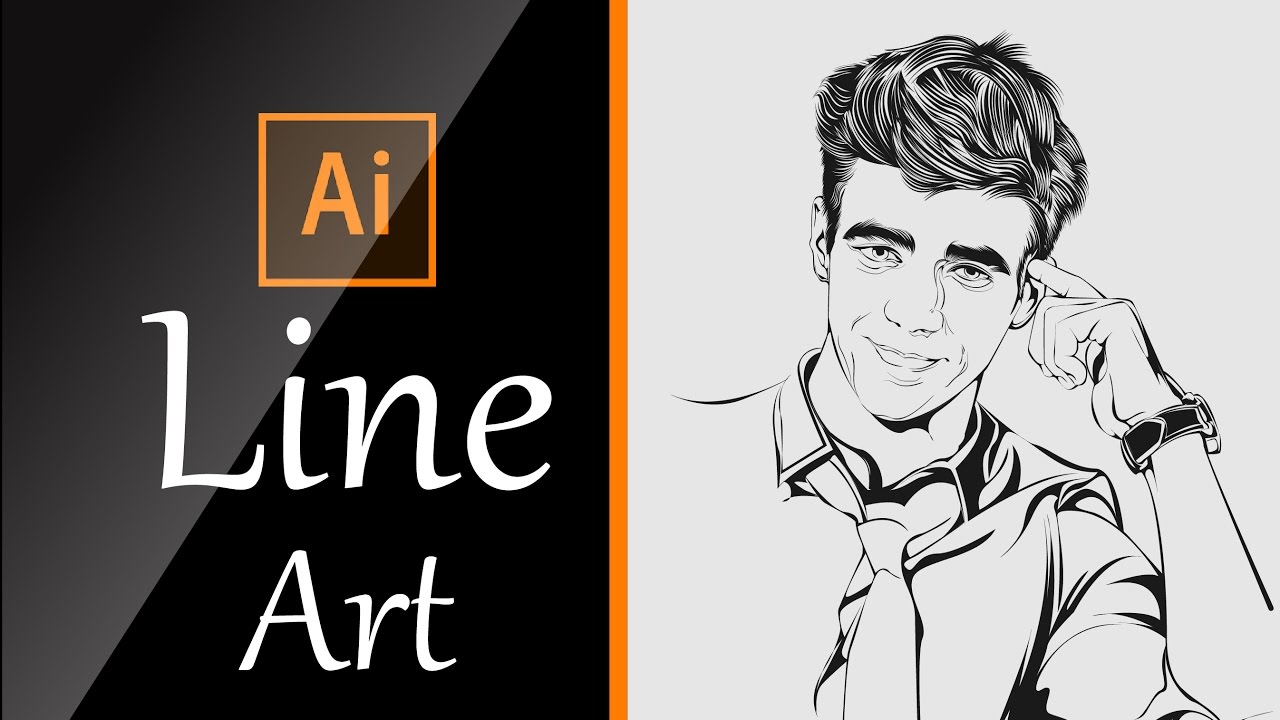
The Best Tutorial To Learn Line Art Using Adobe Illustrator Youtube Illustrator Tutorials Adobe Illustrator Graphic Design Photoshop Tutorial Design

Create A Vector Sunburst In Illustrator Projectwoman Com Adobe Illustrator Graphic Design Illustrator Tutorials Logo Learning Graphic Design

How To Create Geometric Stripy Line Art In Illustrator Graphic Design Tips Illustrator Tutorials Line Art

From Sketch To Vector Illustration Gomediazine Illustrator Tutorials Graphic Design Tutorials Photoshop Design

Alignment And Combining Objects In Adobe Illustrator Designmodo Adobe Illustrator Graphic Design Graphic Design Tutorials Illustration


Posting Komentar untuk "How To Join Vector Lines In Illustrator"